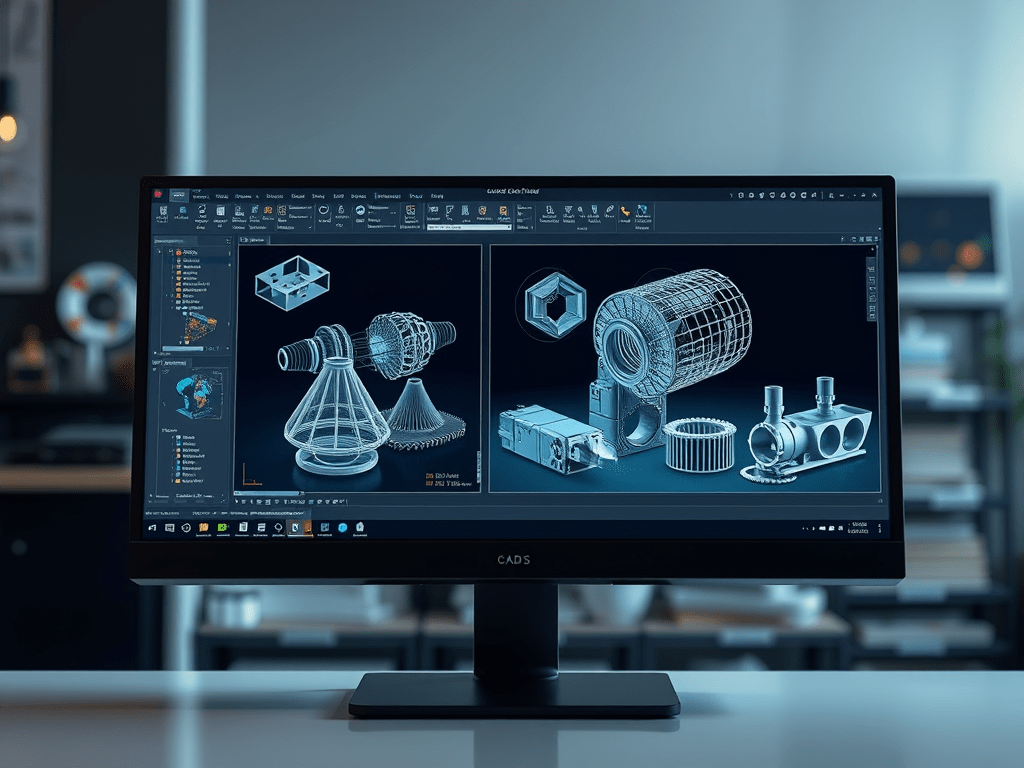
If you work with CAD files, you know how crucial it is to have reliable tools to view, analyze, and share designs. Whether you’re an engineer, architect, or designer, finding the right CAD viewer can save time, reduce errors, and streamline collaboration. In this guide, we’ll explore the best CAD viewer tools available today—including free and paid options—and help you choose the perfect solution for your workflow.
Why Do You Need a Dedicated CAD Viewer Tool?
CAD files (e.g., DWG, DXF, STL, STEP) are complex and often require specialized software to open and interpret. While full-scale CAD programs like AutoCAD or SolidWorks are powerful, they’re expensive and resource-heavy. A dedicated CAD viewer offers a lightweight, cost-effective way to:
- View designs without editing capabilities (ideal for clients or stakeholders).
- Measure dimensions, check layers, and inspect 3D models.
- Convert files between formats (e.g., DWG to PDF).
- Collaborate with annotations and markups.
Let’s dive into the top tools to simplify your CAD workflows.
1. AutoCAD Viewer (Web & Mobile)
Best for: Quick online viewing.
AutoCAD’s official web and mobile viewer lets you open DWG files directly in your browser or on your smartphone. It’s free, requires no installation, and supports basic tools like zoom, pan, and layer toggling.
- Pros: No downloads, cloud storage integration.
- Cons: Limited advanced features.
2. Autodesk Viewer (Web)
Best for: Multi-format support and collaboration.
Autodesk’s free web-based viewer supports 50+ file formats, including DWG, STEP, and SolidWorks files. You can view 2D/3D models, take measurements, and share links with stakeholders. Advanced features include version comparison and markup tools.
- Pros: Cross-platform, collaboration-friendly.
- Cons: Requires an Autodesk account.
3. DWG TrueView (Desktop)
Best for: Offline DWG/DXF viewing.
DWG TrueView is Autodesk’s free desktop software for viewing and plotting DWG files. It includes the DWG Convert tool to switch between AutoCAD versions, making it ideal for backward compatibility.
- Pros: Lightweight, no learning curve.
- Cons: Windows-only, no 3D measurement.
4. eDrawings Viewer (Desktop/Mobile)
Best for: SOLIDWORKS and 3D files.
Developed by SOLIDWORKS, eDrawings supports native SLDPRT and SLDASM files, along with STEP, IGES, and STL. Its mobile app allows augmented reality (AR) visualization—perfect for showcasing 3D models in real-world environments.
- Pros: AR integration, cross-platform.
- Cons: Limited 2D editing.
5. FreeCAD (Open-Source)
Best for: Budget-conscious users.
FreeCAD is a free, open-source parametric 3D modeling tool that doubles as a viewer. It supports STEP, IGES, and STL files and offers basic editing tools. While not as polished as paid software, it’s a solid choice for hobbyists and students.
- Pros: Fully customizable, no cost.
- Cons: Steep learning curve.
6. SketchUp Viewer (Mobile/Web)
Best for: 3D model presentations.
SketchUp’s viewer app lets you explore 3D models on iOS, Android, or via the web. It’s optimized for architectural and interior design files, with VR walkthrough capabilities for immersive client presentations.
- Pros: VR/AR support, intuitive interface.
- Cons: Limited to SketchUp formats (SKP).
7. Bricsys Communicator (Desktop)
Best for: Large-scale CAD projects.
Bricsys Communicator is a paid tool ($290/year) designed for professionals needing advanced viewing, markup, and file conversion. It supports BIM models (IFC), point clouds, and offers batch processing for teams.
- Pros: High performance, multi-format export.
- Cons: Expensive for casual users.
8. Fusion 360 (Cloud/Desktop)
Best for: Integrated design and viewing.
While Fusion 360 is primarily a CAD/CAM tool, its cloud-based viewer allows stakeholders to review designs without a license. Paid plans include real-time collaboration and version control.
- Pros: All-in-one platform, cloud storage.
- Cons: Overkill for simple viewing.
9. GOM Inspect (Free for Basic Use)
Best for: 3D inspection and analysis.
GOM Inspect is a free tool for analyzing CAD vs. scan data discrepancies. It’s popular in manufacturing for quality control, supporting formats like STL, OBJ, and PLY.
- Pros: Precision tools, mesh editing.
- Cons: Complex for non-technical users.
10. Adobe Acrobat 3D (Paid)
Best for: Sharing CAD as PDFs.
Adobe’s premium Acrobat Pro lets you convert 3D CAD files into interactive PDFs. Clients can view and rotate models directly in Adobe Reader, eliminating the need for specialized software.
- Pros: Universal accessibility, annotations.
- Cons: Subscription-based pricing.
How to Choose the Right CAD Viewer
Consider these factors when selecting a tool:
- File Compatibility: Ensure it supports your required formats (e.g., DWG, STEP, STL).
- Platform: Web-based vs. desktop vs. mobile.
- Budget: Free tools work for basic needs; paid tools offer advanced features.
- Collaboration: Look for markup tools and cloud sharing.
FAQs About CAD Viewers
Q: Can I edit CAD files in a viewer?
Most viewers are read-only, but tools like FreeCAD allow light editing.
Q: Are mobile CAD viewers reliable?
Yes! Apps like eDrawings and AutoCAD Viewer offer robust mobile experiences.
Q: Do I need to download software?
Web-based viewers (e.g., Autodesk Viewer) work directly in browsers.
Conclusion
Finding the right CAD viewer depends on your project’s complexity, team size, and budget. For quick online access, Autodesk Viewer and AutoCAD Viewer are unbeatable. For 3D inspections, GOM Inspect and eDrawings shine. Meanwhile, professionals handling large datasets may prefer Bricsys Communicator or Fusion 360.
By choosing a tool that aligns with your needs, you’ll enhance productivity and ensure seamless communication across teams. Ready to simplify your CAD workflows? Start exploring these viewers today!
 Wonder-Ware
Leave a comment