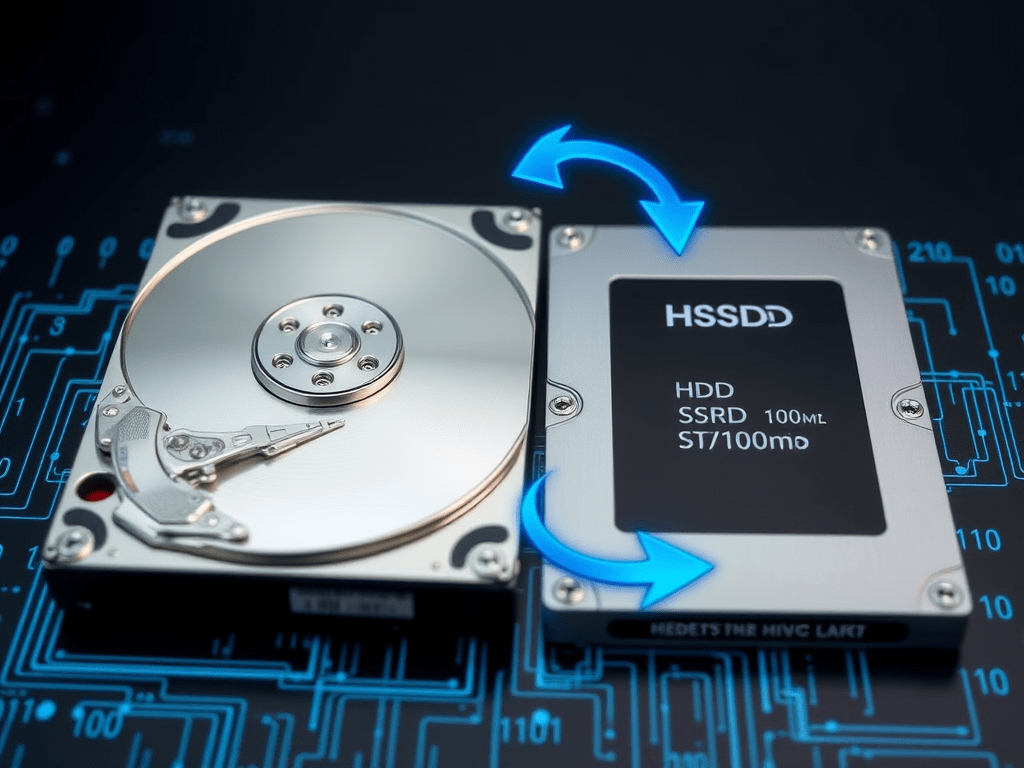
In the era of rapid technological upgrades, replacing an old hard drive (HDD) with a faster solid-state drive (SSD) or migrating data to a larger storage device is a common task. However, manually transferring files, apps, and operating systems is time-consuming and risky. This is where SSD and HDD cloning software for Windows becomes indispensable. In this guide, we’ll explain how cloning tools work, their key benefits, and how to choose the best software for your needs.
What Is SSD/HDD Cloning Software?
SSD/HDD cloning software is a specialized tool designed to create an exact copy (clone) of one storage drive onto another. Whether you’re upgrading to an SSD for better performance, replacing a failing HDD, or backing up critical data, cloning ensures all files, partitions, and even the operating system are replicated without reinstalling Windows or applications.
How Does Cloning Software Work?
Cloning software uses advanced algorithms to duplicate every sector of your source drive. Here’s a breakdown of the process:
Sector-by-Sector Copying
- The software scans the source drive (HDD or SSD) and replicates its entire structure, including hidden system files, boot records, and partitions, to the target drive.
Partition Resizing (Optional)
- If the target drive is larger or smaller, some tools automatically adjust partition sizes to utilize available space.
Data Compression and Optimization
- Advanced software skips empty sectors and compresses data to speed up cloning, especially useful for large drives.
Post-Cloning Validation
- Reliable tools verify the cloned drive to ensure no data corruption occurred during the transfer.
Why Use SSD/HDD Cloning Software for Windows?
Upgrade to an SSD Without Reinstalling Windows
- Migrate your OS, apps, and files from an HDD to an SSD to enjoy faster boot times and improved system responsiveness.
Replace Aging or Failing Drives
- Clone a dying HDD to a new drive before it crashes, preventing data loss.
Simplify Data Backup
- Create a bootable backup drive for disaster recovery.
Save Time and Effort
- Avoid manually reinstalling software, drivers, and configuring settings.
- Cross-Drive Compatibility
- Clone between different drive types (HDD to SSD, SATA to NVMe) and brands.
Key Features to Look for in Cloning Software
When choosing SSD and HDD cloning software for Windows, prioritize these features:
- Support for All Drive Types: HDD, SSD, M.2, NVMe, and USB drives.
- Partition Management: Resize, merge, or split partitions during cloning.
- UEFI/GPT Compatibility: Essential for modern Windows systems.
- Bootable Media Creation: Clone drives even if Windows fails to boot.
- Incremental Cloning: Update only changed data for frequent backups.
- User-Friendly Interface: Ideal for beginners and advanced users.
Top SSD/HDD Cloning Tools for Windows
Macrium Reflect
- Pros: Free version available, fast cloning, robust backup features.
- Best For: Home users and IT professionals.
EaseUS Todo Backup
- Pros: Intuitive interface, disk imaging, and cloud integration.
- Best For: Seamless HDD-to-SSD migration.
Clonezilla
- Pros: Open-source, supports multiple file systems.
- Best For: Tech-savvy users comfortable with a Linux-based UI.
- Pros: AI-based optimization, ransomware protection.
- Best For: Comprehensive backup and cloning solutions.
AOMEI Backupper
- Pros: Disk cloning, system sync, and universal restore.
- Best For: Small businesses and personal use.
Step-by-Step Guide to Cloning a Drive
- Prepare the Target Drive: Connect the SSD/HDD to your PC via SATA, USB, or M.2 slot.
- Launch the Cloning Software: Select the source and target drives.
- Adjust Settings: Resize partitions if needed, enable sector-by-sector cloning (for exact copies).
- Start the Cloning Process: Let the software replicate your data (time depends on drive size).
- Swap Drives: Replace the old drive with the cloned one and boot your system.
Common Questions About Cloning Software
Q: Can I clone a larger HDD to a smaller SSD?
A: Yes, if the used space on the HDD is less than the SSD’s capacity. Use software that automatically adjusts partitions.
Q: Does cloning void my SSD warranty?
A: No, cloning is a standard process and doesn’t affect warranties.
Q: Can I clone a drive with bad sectors?
A: Some tools skip bad sectors, but cloning a failing drive risks incomplete transfers. Backup critical data first.
Q: Is cloning better than a fresh Windows install?
A: Cloning saves time, but a clean install may improve performance if the OS is bloated.
Tips for Successful Cloning
- Update Firmware: Ensure your SSD/HDD has the latest firmware.
- Use a SATA-to-USB Adapter: For laptops without extra drive bays.
- Disable Encryption: Temporarily turn off BitLocker before cloning.
- Test the Cloned Drive: Boot from it to confirm functionality.
Conclusion
SSD and HDD cloning software for Windows simplifies data migration, enabling effortless upgrades, backups, and system recovery. Whether you’re a home user upgrading to an SSD or an IT professional managing multiple systems, the right cloning tool saves time and ensures data integrity.
Ready to upgrade your storage? Explore the top cloning software options today and enjoy a hassle-free transition to a faster, more reliable drive!
 Wonder-Ware
Leave a comment