Introduction
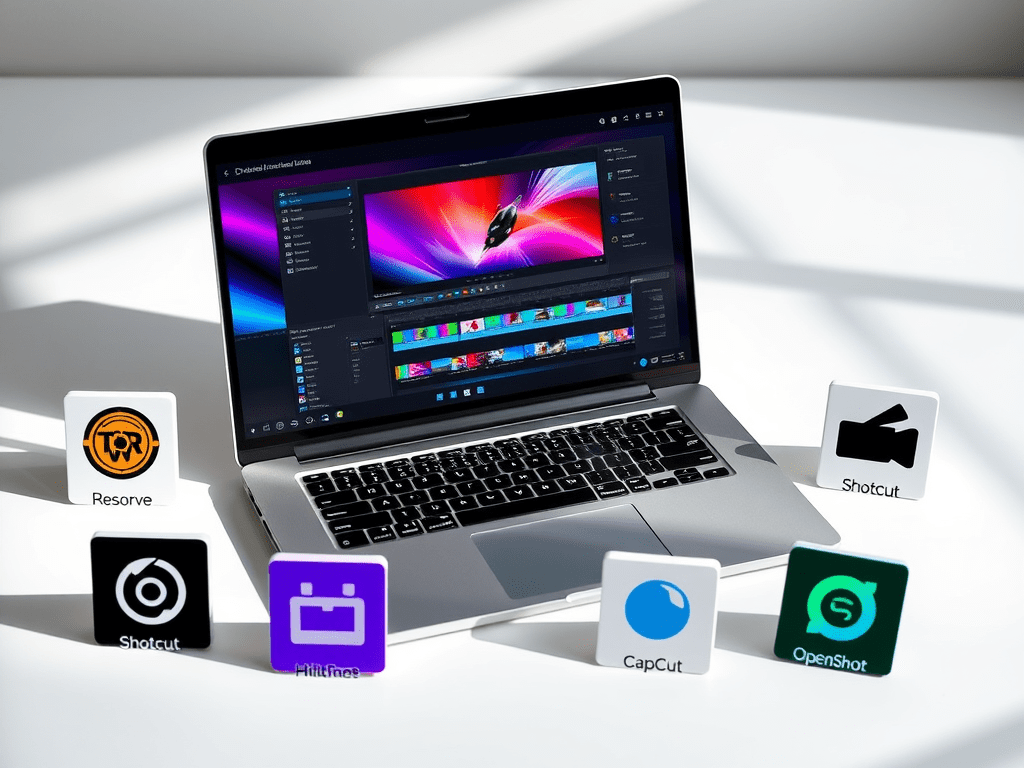
Finding the best free video editing software for beginners with no watermark can be daunting. Many free tools limit features or add annoying watermarks, forcing users to upgrade. But what if you could create polished videos without spending a dime? In this guide, we’ve tested and ranked the top free video editors that offer zero watermarks, user-friendly interfaces, and essential tools for beginners.
Why Choose Free Video Editing Software with No Watermark?
- Cost-Effective Start: Avoid upfront costs while learning the basics.
- Professional Output: Export videos without distracting logos or branding.
- Beginner-Friendly: Intuitive tools for cutting, transitions, text, and effects.
Top 5 Free Video Editors with No Watermark
1. DaVinci Resolve
- Best For: Advanced beginners transitioning to pro tools.
- Key Features:
- Hollywood-grade color correction & audio post-production.
- No watermark, even in the free version.
- Supports 4K editing and multi-track timelines.
- Platforms: Windows, macOS, Linux.
- Limitation: Steeper learning curve for absolute beginners.
2. Shotcut
- Best For: Open-source enthusiasts.
- Key Features:
- Cross-platform compatibility (Windows, macOS, Linux).
- Wide format support (4K, 360° video).
- No watermarks or ads.
- Limitation: Dated interface but highly functional.
3. HitFilm Express
- Best For: Creators wanting VFX and editing in one tool.
- Key Features:
- 410+ visual effects and presets.
- No watermark on exports.
- Tutorial library for quick learning.
- Platforms: Windows, macOS.
4. CapCut
- Best For: Social media creators (TikTok, Instagram).
- Key Features:
- Trendy templates, filters, and auto-captions.
- Free cloud storage and collaboration.
- No watermark on desktop version.
- Platforms: Windows, macOS, mobile (watermark on mobile).
5. OpenShot
- Best For: Simple projects with drag-and-drop ease.
- Key Features:
- Unlimited layers and 3D animations.
- Completely free and open-source.
- Limitation: Limited advanced features.
Comparison Table
| Software | Best For | Watermark? | 4K Support | Learning Curve |
|---|---|---|---|---|
| DaVinci Resolve | Pro-level editing | No | Yes | Moderate |
| Shotcut | Open-source fans | No | Yes | Easy |
| HitFilm Express | VFX + Editing | No | Yes | Moderate |
| CapCut (Desktop) | Social Media | No | Yes | Easy |
| OpenShot | Simple projects | No | No | Very Easy |
How to Choose the Right Free Video Editor
Define Your Needs:
- Are you editing YouTube videos, short clips, or documentaries?
Check System Requirements:
- Some tools (e.g., DaVinci Resolve) need powerful hardware.
Test Before Committing:
- Most free software doesn’t require account sign-ups.
Pro Tips for Beginners
- Start with templates to save time.
- Use keyboard shortcuts (e.g., Ctrl/Cmd + Z for undo).
- Export in MP4 (H.264) for optimal quality and file size.
FAQ
Q: Do these free editors work on Mac?
A: Yes! DaVinci Resolve, Shotcut, and CapCut have macOS versions.
Q: Can I monetize videos made with free software?
A: Absolutely—none of these tools claim ownership of your content.
Q: What’s the catch with no-watermark free software?
A: Some limit export resolution or advanced features (e.g., HitFilm Express restricts 8K exports to paid plans).
Conclusion
You don’t need a paid subscription to start editing videos like a pro. Whether you’re crafting YouTube content, school projects, or social media clips, tools like DaVinci Resolve and CapCut offer powerful features without watermarks. Choose based on your skill level and project needs, and start creating today!
 Wonder-Ware
Leave a comment