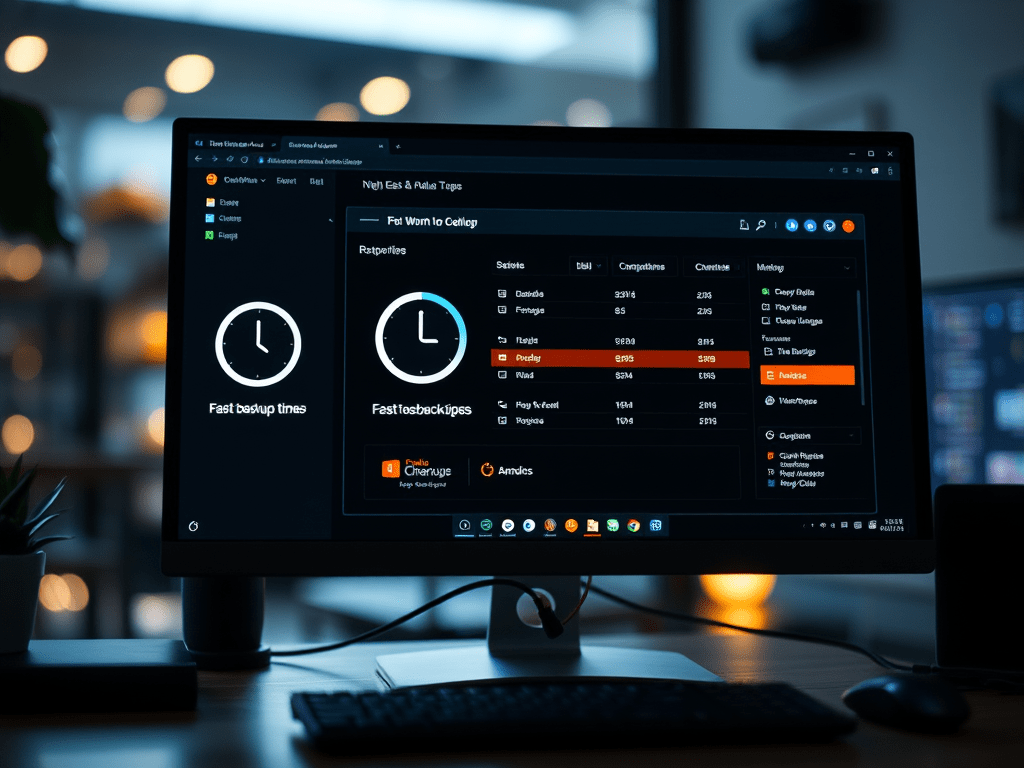
EaseUS Todo Backup positions itself as a budget-friendly yet powerful alternative in the crowded backup software market. Offering a surprisingly robust free version and tiered paid plans, it promises reliable disk imaging, file backup, cloning, and disaster recovery. But does it deliver enough value, especially compared to pricier competitors like Acronis? Let’s dissect its features, performance, and pricing to see if it earns its keep.
The Appeal: EaseUS Todo Backup’s Strengths
- A Truly Valuable Free Version: This is arguably Todo Backup’s biggest draw. The free edition includes full disk/partition imaging, file/folder backup, system backup (OS, apps, settings), disk cloning, and basic scheduling. Real-World Test: Creating a full system image of a Windows 11 PC (250GB used) to an external HDD took ~25 minutes. Restoring the entire system from that image after a simulated drive failure (using the bootable recovery media) worked flawlessly in ~35 minutes. For basic, essential protection, the free version is remarkably capable.
- Competitive Pricing (Paid Plans): EaseUS Todo Backup Home (perpetual license) and Todo Backup Home (subscription) are significantly cheaper than Acronis Cyber Protect Home Office or Macrium Reflect (Business). Business editions are also cost-effective for SMBs. Lifetime licenses (frequent sales) offer long-term savings.
- Streamlined & Intuitive Interface: Compared to Acronis’s sometimes overwhelming interface, Todo Backup is generally cleaner and easier to navigate, especially for beginners. Core backup, restore, and clone functions are front and center. Real-World Observation: Setting up a scheduled daily file backup for critical documents took less than 2 minutes. Initiating a disk clone was equally straightforward.
- Solid Disk Cloning & Migration: A primary use case. Supports HDD->SSD, SSD->SSD, small->larger drives, and even dissimilar hardware (requires paid version for system migration tools). Real-World Test: Cloning a 500GB SATA SSD (Windows 10) to a new 1TB NVMe SSD using the “System Clone” option in the paid version was successful. The new drive booted Windows perfectly without activation issues. Clone speed was good (~40 minutes).
- Flexible Backup Options (Paid): Paid versions add features like:
- Incremental/Differential Backups: Save time and space after the initial full backup.
- Backup to Cloud (EaseUS’s Cloud, Google Drive, Dropbox, OneDrive, etc.): Essential for offsite protection.
- Email Notifications: Get alerts on backup success/failure.
- File Encryption & Compression: Enhance security and save storage space.
- P2V/V2P (Disk to Virtual/ Virtual to Disk): Useful for virtualization scenarios.
- Good Performance: Backup and restore speeds are generally competitive. Leverages Microsoft VSS for consistent backups. Real-World Test: Incremental file backups (after initial full) were very fast (seconds to minutes). Full image creation speeds were on par with competitors (~20-30 mins for 250GB system drive).
The Caveats: Drawbacks & Limitations
- Free Version Limitations: Understandably lacks advanced features: no incremental/differential, cloud backup, encryption, email notifications, P2P recovery, or technical support. Ideal for basic, manual backups only.
- Cloud Storage Costs (Separate): While you can back up to third-party clouds (Drive, Dropbox etc.), EaseUS pushes its own cloud service. Its pricing is comparable to Acronis Cloud (expensive per GB). Value Note: For pure cloud archive, dedicated services like Backblaze B2 often offer better value per TB.
- Ransomware Protection Lacking: Unlike Acronis or some competitors (e.g., Veeam Agent FREE offers rudimentary protection), Todo Backup does not include active ransomware defense/monitoring. You rely solely on backups after an attack, which requires having clean backups stored safely offline/offsite.
- Advanced Features Require Paid: Key features for robust protection (scheduling, cloud, encryption, incremental backups) are locked behind the paywall. The free version is good, but real “set it and forget it” backup needs the paid edition.
- Interface Polish (Minor): While generally intuitive, some settings dialogs feel slightly dated or less polished than top-tier competitors. Occasional translation quirks.
- Support Reputation: Mixed online reviews regarding the responsiveness and effectiveness of technical support, especially for the free version. Paid plans include support, but experiences vary.
- No Integrated Antivirus: EaseUS focuses purely on backup/recovery/cloning. You’ll need separate antivirus software.
Real-World Verdict: Who Wins with EaseUS Todo Backup?
- Budget-Conscious Home Users / Beginners: The Free version is a fantastic starting point for essential system imaging and file backup. It’s genuinely useful. The paid Home edition offers excellent value for those needing automation, cloud integration, and encryption without breaking the bank. Worth it? YES, especially on sale.
- Users Needing Simple Cloning/Migration: Its cloning tools are reliable and user-friendly. Worth it? YES.
- SMBs Needing Cost-Effective Backup: Business editions offer centralized management and good features at a competitive price point. Worth it? POTENTIALLY YES, depending on specific needs vs. alternatives like Veeam Agent FREE (more features but less management) or Synology Active Backup.
- Photographers/Media Creators: Good for backing up large project folders incrementally (paid version). Cloud options help with offsite.
Think Twice If:
- You require active, integrated ransomware protection. (Look at Acronis or add a dedicated anti-ransomware tool).
- You need enterprise-grade features, centralized reporting, or deep integration. (Explore Veeam, Acronis Cyber Protect, or Datto).
- You only need basic file sync (free sync tools might suffice).
- You demand the absolute highest tier of support without question.
The Bottom Line: Value Defined by Needs
EaseUS Todo Backup delivers exceptional value at its price point. Its free version is one of the most capable available, and its paid Home editions provide robust backup, cloning, and recovery features for significantly less than competitors like Acronis.
Is it worth the price?
- Free Version: Absolutely. Unbeatable for basic imaging and cloning.
- Paid Home (Lifetime/Subscription): Generally Yes, especially on sale. Offers excellent core functionality for the cost. Lacks ransomware defense, but if you prioritize budget and core backup features, it’s a strong contender.
- Business Editions: Evaluate carefully. Good value for smaller setups needing central management, but compare features and support expectations against alternatives.
Conclusion: EaseUS Todo Backup isn’t the most feature-rich or security-focused backup suite on the block, but it excels at providing reliable core backup, cloning, and recovery tools at a highly competitive price. For home users and budget-minded SMBs seeking solid functionality without premium costs, it frequently proves itself definitively “worth the price.” Just ensure its feature set (and lack of ransomware protection) aligns with your specific security needs.
 Wonder-Ware
Leave a comment