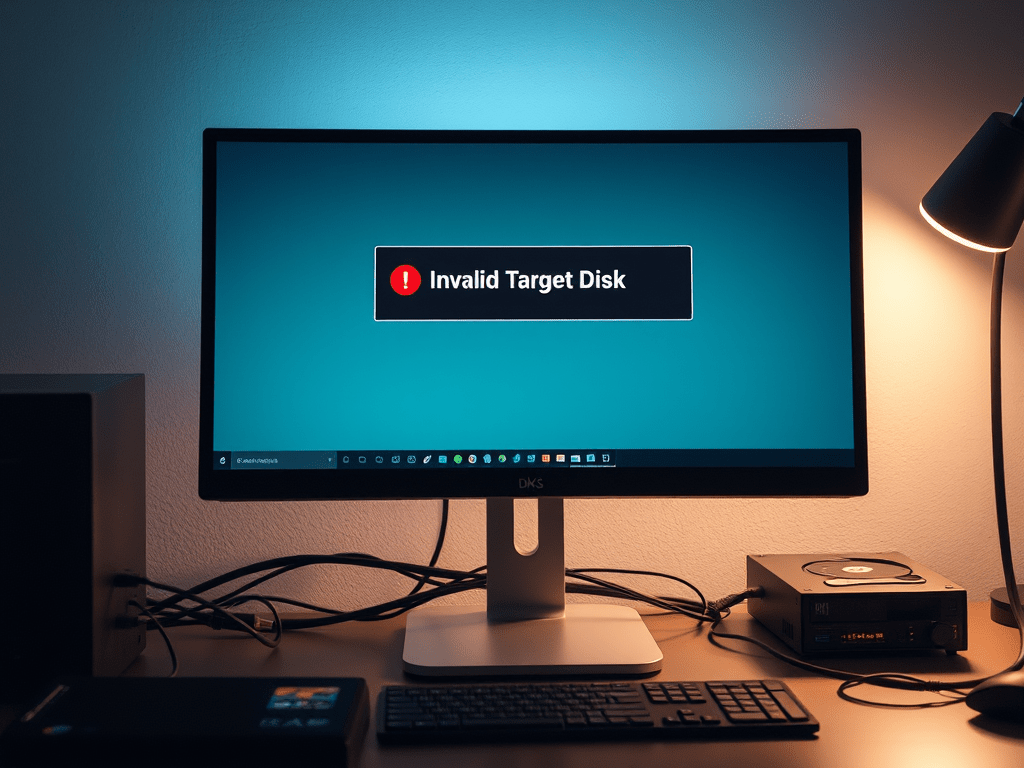
Disk cloning promises a seamless transition to a new drive – faster boot times, more storage, or a reliable backup. But few things are more frustrating than encountering the dreaded “Invalid Target Disk” error mid-process. This roadblock halts your progress and leaves you wondering: Why is this happening, and how do I fix it?
Why Cloning Fails (Especially “Invalid Target Disk”)
- Incompatible Partitioning Schemes (GPT vs. MBR): This is the most common culprit. Your source disk uses one partitioning style (usually GPT for modern UEFI systems or MBR for older BIOS systems), but the target disk is initialized with the other. Cloning tools often require matching schemes.
- Damaged Disk or Bad Sectors: Physical issues on the target drive (or occasionally the source) can prevent the cloning software from reliably writing data, triggering errors.
- Insufficient Target Disk Space: The target drive must be larger than the used space on the source drive. If it’s smaller, even by a fraction, cloning fails.
- File System Errors: Corruption on the source drive (e.g., NTFS errors on Windows) can confuse the cloning software when trying to read data.
- Boot Mode Mismatch (UEFI vs. Legacy BIOS): If your system boots the source drive in UEFI mode but the target drive isn’t properly prepared for UEFI (or vice-versa), booting after cloning might fail, sometimes reported as an “invalid” target during setup.
- Faulty Connections or Cables: A loose SATA/USB cable or a bad port can cause intermittent communication errors.
- Software Limitations: Free or basic versions of cloning tools might lack support for specific hardware configurations, GPT disks, or advanced features.
- Conflicting Partitions: Existing partitions on the target disk (especially hidden recovery partitions or EFI system partitions) might interfere if not properly handled by the cloning software.
Fixing the “Invalid Target Disk” Error: A Step-by-Step Guide
- BACKUP FIRST: Before attempting any fixes, ensure you have a recent backup of your important source drive data. Cloning troubleshooting carries risks.
- Verify Partition Schemes (Critical!):
- On Windows: Press
Win + X> Disk Management. Right-click the Disk # label (e.g., “Disk 0”, “Disk 1”) for both source and target, select “Properties,” then the “Volumes” tab. Check “Partition style” (GPT or MBR). - On macOS: Use Disk Utility. Select the disk (not the volume) in the sidebar. The scheme (GUID Partition Map, Master Boot Record, etc.) is shown below.
- Fix: If mismatched, initialize the target disk correctlybefore cloning:
- In Disk Management (Windows), right-click the target disk (where it says “Disk #”), select “Initialize Disk”. Choose the SAME partition style as your source disk (GPT or MBR). This WILL ERASE the target disk.
- In Disk Utility (macOS), erase the target disk, explicitly selecting the correct scheme (usually GUID Partition Map for modern Macs/Windows UEFI).
- On Windows: Press
- Check Disk Health & Space:
- Space: Ensure the target drive’s total capacity is larger than the used space on the source drive. Give yourself breathing room (e.g., 10-20% extra).
- Health: Use built-in tools:
- Windows: Open Command Prompt as Admin, run
chkdsk X: /f /r(replace X with your source drive letter). Also, check the drive status in Disk Management for warnings. - macOS: Use Disk Utility’s “First Aid” on both disks.
- Third-Party Tools: Consider utilities like CrystalDiskInfo (Windows) or DriveDx (macOS) for deeper SMART data analysis. Replace the target drive if it shows significant problems.
- Windows: Open Command Prompt as Admin, run
- Check Connections & Hardware:
- Try different SATA/USB ports on your computer.
- Replace the SATA or USB cable connecting the target drive.
- If using a USB enclosure, try connecting the target drive directly via SATA if possible, or try a different enclosure.
- Repair Source Disk Errors:
- Run
chkdsk X: /f /r(Windows) or Disk Utility First Aid (macOS) on the source drive to fix potential file system corruption.
- Run
- Choose the Right Cloning Method & Software:
- Sector-by-Sector vs. Intelligent: If the target is larger, intelligent cloning (copying only used sectors) is usually fine and faster. If sizes are identical or you suspect partition issues, try sector-by-sector cloning (if your software supports it), but ensure the target is at least as large as the source.
- Reputable Software: Use well-regarded tools known for reliability and GPT/MBR/UEFI support. Examples: Macrium Reflect (Win), Clonezilla (Free, Win/Mac/Linux), Carbon Copy Cloner (Mac), Acronis True Image (Win/Mac). Paid versions often offer better support and features.
- Clean the Target Disk (Advanced):
- If initialization didn’t work or you suspect leftover partition conflicts, use Disk Management (Windows) or
diskpart(Command Prompt) to completely clean the target disk (cleancommand indiskpart– WILL ERASE EVERYTHING!), then initialize it correctly. In Disk Utility (macOS), use the “Erase” function.
- If initialization didn’t work or you suspect leftover partition conflicts, use Disk Management (Windows) or
- Consider Boot Mode:
- Ensure your BIOS/UEFI settings match the partition scheme (UEFI boot for GPT disks, Legacy/CSM boot for MBR disks). Sometimes recreating the EFI System Partition on the target during/after cloning is needed (more advanced).
Prevention is Key
- Always initialize the target disk to match the source partition scheme before starting the clone.
- Use high-quality cables and ports.
- Regularly check disk health.
- Choose reliable cloning software.
By systematically checking these potential causes – starting with the crucial partitioning scheme mismatch – you can diagnose and overcome the “Invalid Target Disk” error, successfully clone your drive, and enjoy the benefits of your upgraded or backed-up storage. Patience and careful troubleshooting are your best allies!
 Wonder-Ware
Leave a comment