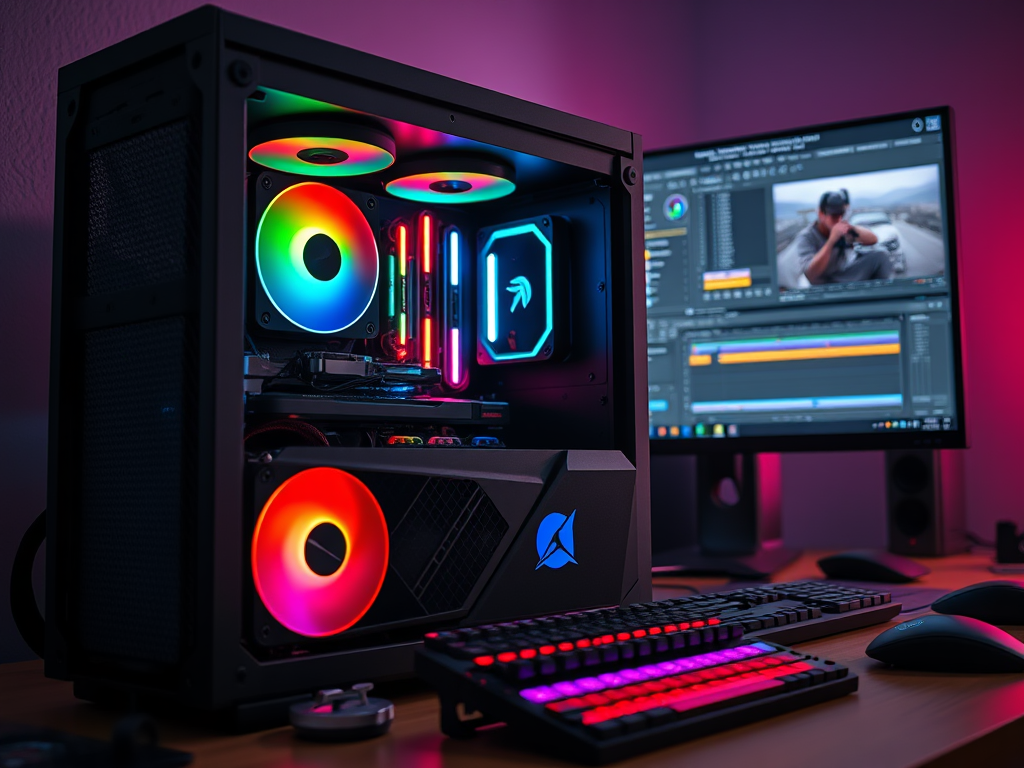
Discover expert settings, hardware tips, and software tweaks to ensure buttery-smooth gameplay while recording and drastically reduce rendering times. This guide provides step-by-step solutions to eliminate lag, dropped frames, and crashes, creating a seamless experience for content creators of all levels.
Hardware: The Foundation of Performance
Before diving into software, ensure your hardware is up to the task.
- CPU (Processor): The workhorse for encoding and editing. Aim for a high core-count processor (e.g., Intel Core i7/i9 or AMD Ryzen 7/9). More cores significantly speed up rendering and multitasking.
- GPU (Graphics Card): Crucial for gaming performance and GPU-accelerated effects in editing software. Modern NVIDIA (NVENC) and AMD (AMF) encoders offload recording tasks from the CPU, drastically improving in-game performance.
- RAM (Memory): 16GB is the absolute minimum for 1080p editing. 32GB or more is recommended for smooth 1440p or 4K editing, especially with other applications like Discord or a browser open.
- Storage (Drives):
- OS & Software: Install Windows and your editing software on a fast NVMe SSD.
- Game Library: Store games on a separate SATA SSD for fast load times.
- Active Projects: Edit your videos from a dedicated SSD (NVMe preferred).
- Archive: Store completed projects and raw footage on a high-capacity HDD.
Pro Tip: The NVIDIA NVENC encoder (on GTX 1000-series and newer cards) is the gold standard for recording, offering near-perfect performance with minimal impact on FPS.
Software & Settings for Optimal Recording
The goal is to capture high-quality footage without sacrificing gameplay.
- OBS Studio (Open Broadcaster Software) Settings:
- Encoder: Use NVIDIA NVENC (new) or AMD AMF if available.
- Rate Control: CBR (Constant Bitrate) for streaming, CQP (Constant Quality) or VBR (Variable Bitrate) for local recording. CQP (Level 18-22) offers the best quality-to-file-size ratio.
- Bitrate: For local recording, a bitrate of 30,000 – 50,000 Kbps (30-50 Mbps) is ideal for 1080p 60fps.
- Canvas Resolution: Set to your native monitor resolution (e.g., 1920×1080).
- Output (Scaled) Resolution: Downscale to 1080p if you game at 1440p/4K to save file space and editing resources.
- Frame Rate: 60 fps is standard for most content.
- Windows Game Mode: Enable it. Contrary to old advice, modern Game Mode helps prioritize resources for your game while recording.
- In-Game Settings:
- Cap your frame rate slightly below your monitor’s refresh rate to maintain consistent performance.
- Lower CPU-intensive settings like shadows, draw distance, and physics if you experience frame drops while recording.
Optimizing Your PC for Editing
A smooth editing experience is just as important as a smooth recording.
- Software-Specific Optimizations:
- DaVinci Resolve: Go to
DaVinci Resolve > Preferences > Memory and GPU. Set the GPU processing mode to your specific card (e.g., CUDA for NVIDIA). - Adobe Premiere Pro: Go to
File > Project Settings > General > Video Rendering and Playback. Set the Renderer toMercury Playback Engine GPU Acceleration (CUDA/Metal).
- DaVinci Resolve: Go to
- Use Proxy Files: This is the #1 trick for smooth editing. Create low-resolution copies of your high-resolution footage to edit with. Once your edit is complete, the software will automatically relink to your original high-quality files for the final export. (Look for “Proxy” or “Create Proxies” in your editor’s menu).
- Manage Your Workflow:
- Close all unnecessary applications (especially web browsers) while editing to free up RAM and CPU cycles.
- Enable Hardware-Accelerated GPU Scheduling in Windows Graphics Settings for a potential performance boost.
Troubleshooting Common Performance Issues
- Dropped Frames in OBS: This indicates an encoding overload. Lower your recording resolution, switch to a hardware encoder (NVENC/AMF), or increase your CQP level.
- Choppy Playback in Editor: You are likely editing with high-bitrate files. Create proxy files immediately.
- Long Render Times: Ensure you are using GPU acceleration in your project settings. Also, check that your export settings match your timeline settings to avoid unnecessary conversion.
Conclusion: A Well-Oiled Machine
Optimizing your PC is an ongoing process of balancing hardware capabilities with software settings. By strategically upgrading key components, leveraging hardware encoders for recording, utilizing proxies for editing, and fine-tuning your software, you can create a powerful and efficient content creation workstation. A optimized setup removes technical barriers, allowing you to focus purely on your creativity and craft.
 Wonder-Ware
Leave a comment